
Contents · Edition 031
Edition 031
From the Editors
Small businesses have never had access to more powerful tools. Software that once required large budgets and technical teams is now available for a modest monthly fee. Automation can send reminders, move data, generate invoices and follow up with customers while the founder sleeps. AI assistants can draft, summarise, analyse and suggest.
Yet many founders feel more overwhelmed by tools, not less. They pay for subscriptions they barely use, copy information between systems that do not connect and spend evenings learning software that promised to save time. Tools have become another source of complexity.
This issue offers a calmer approach. We begin with a simple principle: define the process first, then choose the tool. We look at connecting tools, deciding what to automate and automating carefully. We consider how to use AI assistants responsibly, how to protect data and how to help a team adopt new tools. We finish with a regular review that keeps your tool stack lean and useful.
Technology should give you time back and make your customers' experience better. When it does neither, it is not helping.
The Editors, Hustle Mag
In This Edition
Tools and Automation
Choosing Tools and Automating Carefully, Without Losing the Human Touch
The right tools and careful automation can save hours every week, reduce errors and improve customer experience. The wrong tools, or automation applied to broken processes, can create confusion and risk.
This issue builds a deliberate approach to technology. We start with process before tools, then cover connecting tools, deciding what to automate and automating carefully. We look at AI assistants, data and security, helping teams adopt tools and reviewing your tool stack regularly.
Each article ends with one step that makes your technology work harder for you.
Cover Story · 01 of 08
Process First, Tools Second
A tool cannot fix a process you have not defined. Decide how work should flow, then choose software.
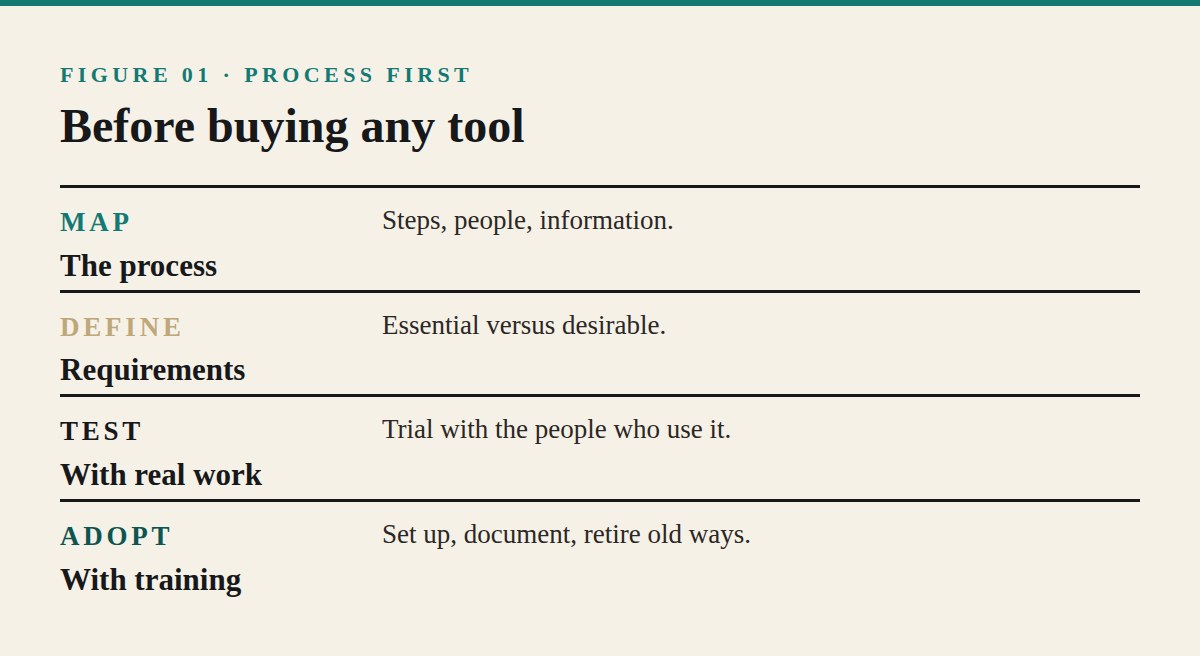
When something in a business feels inefficient, the first instinct is often to buy a tool: a new project management system, a customer relationship platform, an automation service. Sometimes this helps. Often, the tool adds complexity because the underlying process was never clear. Software then automates confusion.
The better approach is to define the process first and choose tools that support it.
Why tools fail
Tools often fail for familiar reasons: nobody agreed how the work should be done, the tool was chosen for features rather than needs, setup was rushed, people were not trained or the tool did not connect with existing systems. In each case, the problem began before the tool was installed.
Map the process
Before choosing a tool, map the process it should support: the steps, the people involved, the information required and the outcome. Identify where the process is slow, error-prone or repetitive. These pain points define what the tool must do.
Define requirements
Turn the pain points into a short list of requirements. For example: "Send automatic appointment reminders", "Allow clients to book online", "Connect to our accounting software". Separate essential requirements from desirable features.
Prefer simple tools
Simple tools that do the essential job well are often better than complex platforms with many unused features. Complexity increases training time, mistakes and cost.
Check integration
Consider how the tool will connect with the tools you already use. A tool that requires manual copying of information may create more work than it saves.
A tool that requires manual copying of information may create more work than it saves.
Test before committing
Use free trials or monthly plans to test tools with real work. Involve the people who will use the tool daily. Their experience during the trial is more informative than marketing materials.
Plan setup and training
Allow time to configure the tool properly, import data, document how it will be used and train everyone involved. A well-configured simple tool outperforms a poorly configured powerful one.
A practical tool: the tool selection brief
Before buying any tool, write a one-page brief: the process it supports, the current pain points, essential and desirable requirements, tools it must connect with, who will use it, budget and how success will be measured after three months. Compare options against the brief rather than against each other's feature lists.
Questions before buying
Ask: Could we fix this by improving the process without new software? Do we already own a tool that could do this? How long will setup and training take? What happens to our data if we stop using it? Who will own the tool and keep it configured? These questions prevent many unnecessary purchases.
Common mistakes
Businesses often buy tools before defining processes, choose based on popularity or features, skip trials, underestimate setup time or fail to train their team. Others buy several overlapping tools. Defining the process and requirements first leads to better choices and faster benefits.
An example in practice
A small consultancy bought an expensive project management platform, hoping it would organise its work. Months later, few people used it because nobody had agreed how projects should be tracked. The founder mapped the project process, defined five essential requirements and switched to a simpler tool configured around that process. Adoption was immediate, and project status became visible to everyone.
Tools as servants, not masters
The purpose of any tool is to make a process easier, faster or more reliable. If a tool forces your team to work in awkward ways, consider whether the problem is the tool, the configuration or the process itself. A good tool fades into the background and lets people focus on their work.
Integration · 02 of 08
Connecting Your Tools
Every time information is copied by hand, time is lost and errors appear. Connect your tools where it matters.
Many small businesses use several tools that do not communicate with each other. Customer details are entered in a booking system, then copied into an accounting tool, then into an email platform and a spreadsheet. Each manual transfer takes time and introduces opportunities for errors.
Connecting tools allows information to flow automatically between systems, reducing duplication and improving accuracy.
Map your information flow
List the tools you use and the information each holds: customer details, orders, invoices, appointments, tasks and files. Draw arrows showing where information moves between tools and whether it moves manually or automatically.
This map often reveals repeated manual data entry.
Identify a single source of truth
For each important type of information, decide which tool is the main source of truth. For example, customer contact details might live in your customer relationship tool, invoices in your accounting software and tasks in your project management tool. Other tools should draw from these sources rather than duplicating them.
Use built-in integrations first
Many tools offer built-in connections to popular services. These are usually the simplest and most reliable way to connect systems. Check what integrations already exist before considering more complex solutions.
Consider integration platforms
Integration platforms can connect tools that do not integrate directly, moving data when certain events occur. For example, when a new booking is made, a customer record can be created automatically. Start with simple, well-tested connections.
Avoid fragile chains
Long chains of automated connections can break unexpectedly. Keep integrations as simple as possible, document how they work and know who is responsible for maintaining them.
Test carefully
Before relying on an integration, test it with real examples. Check that information transfers correctly, duplicates are not created and errors are reported.
Long chains of automated connections can break unexpectedly.
Monitor regularly
Tools update their features and connections over time. Review integrations periodically to ensure they continue to work as expected.
Protect data
When connecting tools, ensure only necessary information is shared and that each tool meets your security and data protection requirements.
A practical tool: the integration map
Create a simple diagram with each tool as a box and arrows showing how information moves. Label each arrow as manual or automatic and note how often it happens. Highlight manual transfers that occur daily or weekly; these are the best candidates for connection.
Questions before connecting tools
Ask: Which tool should own this information? What happens if the connection fails? Will we notice? Who will fix it? Are we sharing more data than necessary? Could a simpler process remove the need for the connection entirely? Thoughtful answers prevent fragile, hard-to-maintain systems.
Common mistakes
Businesses often duplicate information across tools, create complex automation chains without documentation, rely on integrations without testing or forget to monitor them after setup. Others connect tools without deciding which system is the source of truth. Simple, documented integrations reduce errors and save time.
An example in practice
A small yoga studio entered every new student into its booking system, email platform and accounting software manually. An integration map showed this took several hours each week. The studio connected its booking system to its email platform using a built-in integration and to its accounting software through a simple automation. Administration time fell significantly and errors in student details disappeared.
Keeping a record
Keep a simple document listing each integration: what it connects, what triggers it, what data moves and who maintains it. When something stops working or a team member changes, this record saves hours of investigation and prevents important connections from being forgotten.
When not to connect
Some information transfers happen so rarely that connecting tools is not worth the effort or risk. A monthly export that takes five minutes may be better left manual. Focus integrations on frequent, error-prone transfers where the time saved and accuracy gained clearly justify the setup and maintenance.
Decisions · 03 of 08
What to Automate, and What Not To
Automate the repetitive and predictable. Keep humans where judgement, empathy and relationships matter.

Automation can save significant time, but not every task should be automated. Some tasks benefit enormously from automation: they are repetitive, predictable and rule-based. Others depend on judgement, empathy or personal relationships, and automating them can damage customer experience.
Choosing what to automate wisely is more important than the automation tools themselves.
Good candidates for automation
Tasks that are often suitable for automation include:
- Reminders: appointment, payment and renewal reminders.
- Confirmations: order, booking and payment confirmations.
- Data transfer: moving information between tools.
- Scheduling: booking meetings without back-and-forth emails.
- Reporting: generating regular summaries from existing data.
- Routine follow-ups: welcome sequences and standard check-ins.
These tasks are predictable and follow clear rules.
Tasks to keep human
Some tasks are better handled by people:
- Complex customer problems requiring understanding and judgement.
- Complaints and sensitive situations needing empathy.
- Sales conversations where trust is built.
- Important relationship moments, such as thanking loyal customers.
- Decisions with significant consequences.
Automation can support these tasks, but people should lead them.
Use a simple scoring method
For each candidate task, consider frequency, time required, predictability and risk if something goes wrong. Tasks that are frequent, time-consuming, predictable and low risk are ideal for automation.
Fix the process first
Automating a confusing or inefficient process simply makes it fail faster. Simplify and document the process before automating it.
Start small
Begin with one simple automation that saves time quickly, such as appointment reminders or payment notifications. Early success builds confidence and helps you learn.
Before automating a customer-facing task, consider how it will feel to the customer.
Keep a human backup
Even automated processes need oversight. Ensure someone monitors results and can intervene if something goes wrong.
Consider the customer experience
Before automating a customer-facing task, consider how it will feel to the customer. Automated messages should be clear, helpful and personalised where possible. Customers should always be able to reach a real person when needed.
A practical tool: the automation scorecard
List ten repetitive tasks. Score each from one to five for frequency, time taken, predictability and low risk. Add the scores. Tasks scoring sixteen or more out of twenty are strong candidates; those scoring under ten are usually best left to people.
Questions before automating
Ask: How often does this task occur, and how long does it take? What could go wrong if it runs incorrectly? Will customers notice it is automated, and will they mind? Who will monitor it? How will we know it is working? Clear answers help you automate confidently and safely.
Common mistakes
Businesses often automate tasks that require judgement, automate broken processes, remove easy access to human support or launch automations without monitoring. Others automate rare tasks while frequent repetitive work remains manual. Choosing carefully ensures automation saves time without harming relationships.
An example in practice
A small dental practice automated appointment reminders, booking confirmations and recall notices, saving reception staff several hours each week. It deliberately kept complaints, treatment questions and anxious patient calls with experienced staff. Patients appreciated the timely reminders and continued to value the personal care they received when speaking to the team.
Partial automation
Many tasks do not need full automation. A system might prepare a draft reply, a pre-filled invoice or a summary for a person to check and send. Partial automation keeps human judgement in control while removing most of the repetitive effort, and it is often the best first step for customer-facing work.
Reviewing automations against experience
Every few months, read a sample of automated messages as if you were the customer. Are they still accurate? Do they sound helpful? Do customers reply with questions that suggest confusion? Adjusting wording and timing based on real customer reactions keeps automation from feeling cold or mechanical.
Implementation · 04 of 08
Automating Carefully
A broken automation can repeat a mistake a thousand times. Design, test and monitor every one.
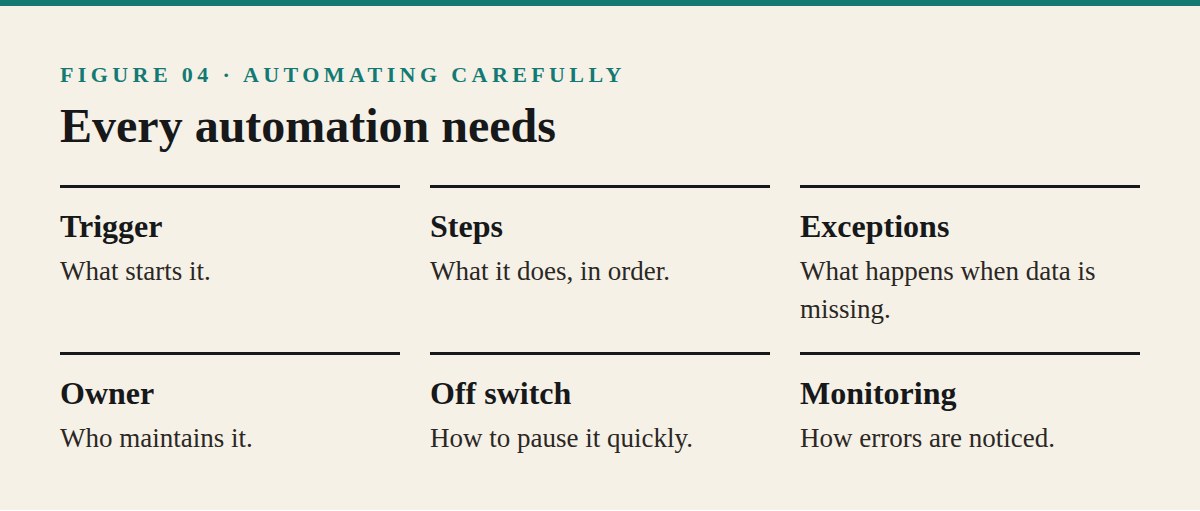
Automation can work silently for months, saving time without anyone noticing. That is its strength, and its risk. When an automation fails or behaves unexpectedly, it can send incorrect messages, create duplicate records or miss important tasks without anyone realising. Careful design, testing and monitoring make automation reliable.
Define the trigger and outcome
Every automation has a trigger, the event that starts it, and an outcome, the action it performs. Write these down clearly. For example: "When a customer books an appointment, send a confirmation email immediately and a reminder one day before."
Clear definitions prevent misunderstandings.
Map the steps
List each step the automation performs and the information it uses. Consider what happens if information is missing or incorrect.
Handle exceptions
Not every case will be routine. Decide what should happen when something unusual occurs: missing contact details, cancelled orders or duplicate bookings. Where possible, send exceptions to a person for review.
Test with real examples
Before launching, test the automation with a variety of real scenarios, including unusual cases. Check every message, record and action carefully.
Launch gradually
Start with a small group of customers or a limited period. Monitor results closely before expanding the automation to all customers.
Monitor regularly
Check automated processes regularly. Look for failed actions, incorrect messages, duplicates or unexpected results. Many tools provide logs or notifications when errors occur.
Record what each automation does, what triggers it, which tools it uses, who maintains it and how to pause it if necessary.
Document each automation
Record what each automation does, what triggers it, which tools it uses, who maintains it and how to pause it if necessary. Documentation makes troubleshooting easier and protects the business if someone leaves.
Review periodically
Processes change over time. Review automations regularly to ensure they still reflect current processes, prices, messages and customer needs.
Keep messages human
Automated customer communication should sound natural and helpful. Use clear language, include relevant personal details where appropriate and make it easy for customers to reply or contact a person.
A practical tool: the automation record
For each automation, keep a short record: name, purpose, trigger, steps, tools involved, owner, how to pause it, date last tested and known exceptions. Store all records in one place. When something goes wrong, this record turns a stressful search into a quick fix.
Questions during testing
Ask: What happens if a field is empty? If the customer cancels? If the same event happens twice? If a connected tool is unavailable? Does every message read correctly with real names and dates? Testing these cases before launch prevents most embarrassing failures.
Common mistakes
Businesses often launch automations without testing unusual cases, forget to monitor them, fail to document how they work or allow messages to become outdated. Others make it difficult for customers to reach a person. Careful design, testing and documentation make automation dependable.
An example in practice
A small online course creator set up an automation that sent course access links after purchase. A change to the payment platform caused some customers to receive no email. Because the automation was undocumented and unmonitored, the problem went unnoticed for days. Afterwards, she documented each automation, added error notifications and checked logs weekly. Similar problems were caught within hours.
Starting with a manual version
Before automating a process, run it manually for a few weeks using templates and checklists. A manual run reveals exceptions, unclear steps and timing issues that are easy to fix on paper but expensive to discover after automation. Automate only once the manual version runs smoothly.
A kill switch
Every important automation should be easy to pause. Know where the on-off control is, who is allowed to use it and how to resume safely. When something goes wrong, stopping the automation quickly prevents a small error from becoming hundreds of incorrect messages or records.
Technology · 05 of 08
AI Assistants, Used Well
AI can draft, summarise and analyse in seconds. It still needs human judgement, checking and care.
AI assistants have become practical tools for small businesses. They can draft emails, summarise documents, suggest ideas, analyse data, create first drafts of content and answer routine questions. Used well, they can save hours each week. Used carelessly, they can produce inaccurate information, generic content or privacy problems.
The key is to treat AI as a capable assistant, not an unquestioned authority.
Useful tasks for AI
AI assistants are often helpful for:
- First drafts: emails, articles, proposals and social posts.
- Summaries: long documents, meeting notes or customer feedback.
- Brainstorming: ideas for content, offers or names.
- Analysis: spotting patterns in data or feedback.
- Editing: improving clarity, tone and structure.
- Learning: explaining unfamiliar topics as a starting point.
These tasks benefit from speed while leaving final decisions to people.
Always check the output
AI can produce confident but incorrect information. Check facts, numbers, names, dates, legal or financial statements and any claims before using AI-generated content. Responsibility for accuracy remains with the business.
Add your expertise
AI drafts are often generic. Improve them with your knowledge, examples, customer insights and voice. The value comes from combining AI speed with human experience.
Protect sensitive information
Be careful about entering confidential, personal or customer information into AI tools. Review the provider's data and privacy terms, follow data protection rules that apply to your business and avoid sharing information you are not permitted to share.
Write clear instructions
The quality of AI output depends heavily on instructions. Explain the goal, audience, format, tone and any constraints. Provide examples where possible. Clear instructions produce more useful results.
Be careful about entering confidential, personal or customer information into AI tools.
Be transparent where appropriate
If AI is used in customer-facing interactions, such as chat support, make it clear when customers are interacting with an automated system and ensure they can reach a person.
Avoid over-reliance
AI should support thinking, not replace it. Use it to speed up work, explore options and improve drafts, while keeping important decisions, relationships and judgement with people.
Create simple guidelines
If others in your business use AI tools, agree simple guidelines: approved tools, what information may be shared, which tasks require human review and how outputs should be checked.
A practical tool: the AI request template
Use a simple structure for requests: the goal, the audience, the format and length, the tone, key facts to include and anything to avoid. Saving templates for common tasks, such as customer replies or article outlines, makes results more consistent and saves time.
Questions before using AI output
Ask: Is every fact correct? Does this sound like us? Does it include any confidential information? Would a customer be misled if they knew how it was created? Has a person reviewed it before it reaches a customer? These checks keep AI helpful and safe.
Common mistakes
Businesses often publish AI output without checking it, share sensitive data carelessly, rely on generic content, hide automated interactions from customers or use AI for decisions that require human judgement. Clear guidelines, careful review and added expertise make AI genuinely useful.
An example in practice
A small bookkeeping firm began using an AI assistant to draft client newsletters and summarise long regulatory updates. Every draft was reviewed and edited by an accountant, who added practical advice and checked all facts against official sources. Preparation time for the newsletter fell by more than half, while its quality and accuracy improved.
Starting with low-risk tasks
Begin using AI on internal, low-risk tasks, such as summarising your own notes, drafting internal documents or brainstorming ideas, before using it for anything customers will see. This builds familiarity with its strengths and weaknesses safely, and helps you develop reliable review habits.
Protection · 06 of 08
Data and Security
Small businesses are attractive targets precisely because they are often unprepared. A few habits prevent most problems.
Many small business owners assume cyber attacks and data breaches mainly affect large companies. In reality, small businesses are frequently targeted because they often lack basic protections. A compromised email account, lost laptop or stolen password can disrupt operations, damage customer trust and create legal obligations.
Most security problems can be prevented with a few consistent habits.
Use strong, unique passwords
Use different passwords for each account and make them long and difficult to guess. A password manager can generate and store passwords securely, making good practice easier.
Enable two-factor authentication
Two-factor authentication adds an extra step when logging in, such as a code from a phone app. Enable it on email, banking, payment platforms, cloud storage, social media and other important accounts.
Control access
Give team members access only to the tools and information they need. Remove access promptly when people leave or change roles. Avoid sharing logins between several people where individual accounts are available.
Keep software updated
Install updates for operating systems, applications and devices promptly. Updates often fix security vulnerabilities.
Back up important data
Keep regular backups of critical information such as customer records, financial data and business files. Test backups occasionally to ensure data can be restored.
Recognise phishing attempts
Many attacks begin with deceptive emails or messages asking people to click links, open attachments or share passwords. Train team members to be cautious, verify unusual requests and report suspicious messages.
Avoid sharing logins between several people where individual accounts are available.
Protect customer data
Collect only the customer information you need, store it securely and follow the data protection rules that apply to your business. Understand where your tools store data and how they protect it.
Plan for incidents
Prepare a short plan for what to do if an account is compromised, a device is lost or data is exposed: who to contact, how to secure accounts and what obligations may apply. Seek professional advice when needed.
A practical tool: the security checklist
Review ten items every quarter: password manager in use, two-factor authentication on key accounts, access reviewed, former team members removed, devices updated, backups tested, recovery details current, team reminded about phishing, customer data minimised and incident plan up to date. Ticking the list takes less than an hour.
Questions to ask about each tool
Ask: Where is our data stored? Who at the provider can access it? Can we export our data if we leave? Does the tool support two-factor authentication? What happens if we lose access? Knowing the answers helps you choose trustworthy tools and recover quickly from problems.
Common mistakes
Businesses often reuse passwords, skip two-factor authentication, share logins, delay updates, keep former team members' access active or never test backups. Others assume they are too small to be targeted. Simple, consistent habits significantly reduce risk.
An example in practice
A small online retailer's email account was compromised after an employee reused a password from another website. Attackers sent fake payment instructions to suppliers. The business recovered the account, but the incident caused disruption and lost money. Afterwards, it introduced a password manager, enabled two-factor authentication on all accounts and trained staff to verify payment changes by phone. No similar incidents followed.
Security for remote and mobile work
Laptops and phones used outside the office need extra care. Enable screen locks and device encryption, avoid unsecured public networks for sensitive work and make sure lost devices can be located or wiped remotely where possible. A lost phone with open access to business email can cause as much damage as a hacked password.
Training the team simply
Security training does not need to be complicated. A short session every few months covering phishing examples, password habits and how to report concerns is often enough. Encourage people to ask when something looks unusual; a quick question costs nothing, while a mistaken click can be expensive.
Change · 07 of 08
Getting the Team to Use Tools
A tool nobody uses is an expense, not an improvement. Adoption needs as much attention as selection.
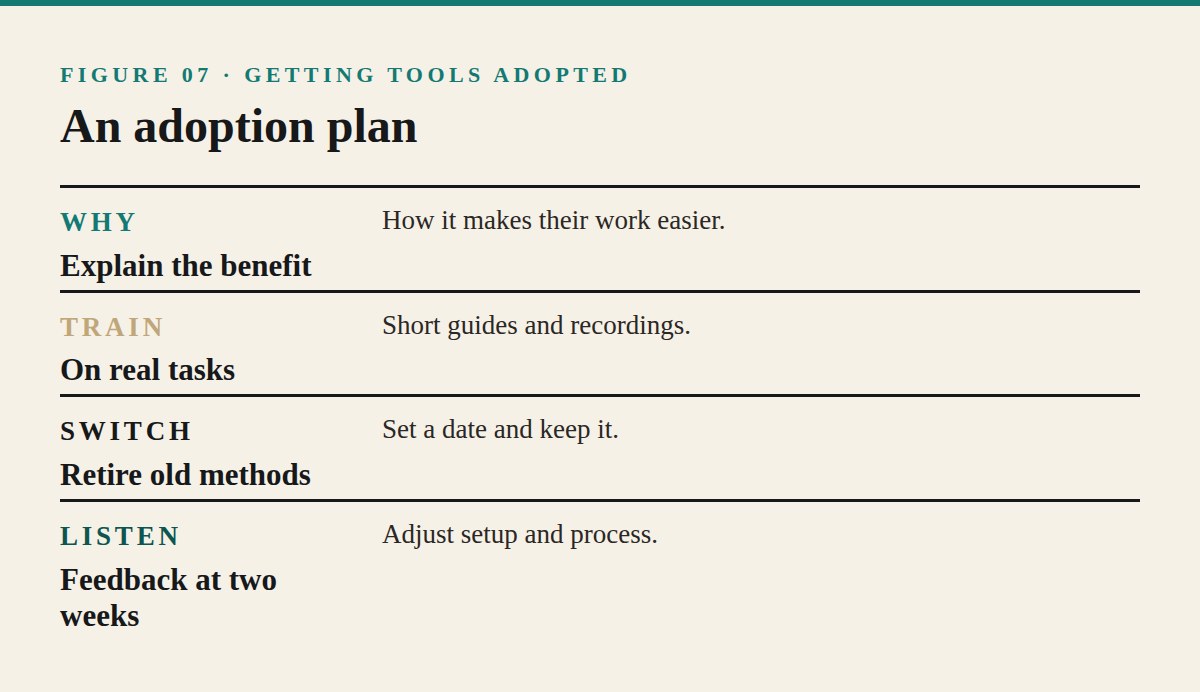
Businesses often invest in new tools that promise efficiency, only to discover months later that people still use spreadsheets, email and memory instead. The tool exists, but adoption has failed. Successful technology depends not only on choosing the right tool, but on helping people use it consistently.
Explain why the tool matters
People are more likely to adopt a tool when they understand the problem it solves. Explain how it will make their work easier, reduce errors or improve customer experience. Focus on benefits for the people using it, not just for the business.
Involve users early
Involve team members in selecting or testing the tool. Their feedback can reveal practical issues and increases commitment. People are more likely to support a tool they helped choose.
Keep the setup simple
Configure the tool around your process and remove unnecessary features. A clean, simple setup is easier to learn and use.
Provide training
Offer practical training based on real tasks rather than general feature tours. Short guides, screen recordings and examples help people learn at their own pace.
Set clear expectations
Explain how and when the tool should be used. For example, all customer enquiries must be recorded in the new system or all tasks must be tracked on the shared board. Clear expectations prevent people from reverting to old habits.
Retire old methods
If old spreadsheets, documents or processes remain available, people will continue using them. Set a date to stop using old methods and move important information into the new tool.
Clear expectations prevent people from reverting to old habits.
Lead by example
Founders and managers must use the tool consistently. If leaders continue using old methods, others will follow.
Ask for feedback
Collect feedback after the first few weeks. What is working well? What is confusing? What could be improved? Adjust the setup and processes based on real experience.
A practical tool: the adoption plan
Before launching a tool, write a short plan: why it matters, who will use it, what training is provided, the date old methods stop, who answers questions and when feedback will be reviewed. Share the plan with everyone affected so the change feels organised rather than imposed.
Questions to ask after launch
After two weeks, ask the team: What do you use the tool for most? What still feels awkward? Where are you still using old methods, and why? What one change would make it easier? Honest answers reveal whether adoption is succeeding and what to adjust.
Celebrating early wins
Share early successes: time saved, fewer mistakes, faster responses or a customer compliment made possible by the new tool. Visible benefits encourage people who are still hesitant and show that the effort of learning was worthwhile.
Common mistakes
Businesses often introduce tools without explaining why, provide little training, keep old methods running indefinitely, configure tools with too many features or fail to use them consistently themselves. Others never ask for feedback. Thoughtful adoption turns tools into real improvements.
An example in practice
A small architecture practice introduced a project management tool, but several team members continued tracking tasks in personal notebooks. The founder explained how the tool would reduce missed deadlines, provided short training sessions using real projects, set a date to stop using old task lists and used the tool himself in every meeting. Within a month, all projects were tracked in the new system.
Supporting different comfort levels
People adopt tools at different speeds. Pair confident users with those who find technology harder, offer short follow-up sessions and keep a simple guide for common tasks. Patience in the first weeks prevents frustration and stops less confident team members from quietly returning to old habits.
Review · 08 of 08
Reviewing Your Tool Stack
Tools accumulate quietly. A regular review keeps your technology lean, connected and worth paying for.
Over time, most businesses accumulate tools: one for a specific project, another recommended by a colleague, a third added during a free trial and never cancelled. Each subscription may seem small, but together they create cost, complexity and security risk. A regular review keeps the tool stack lean and effective.
List every tool
Create a complete list of the tools your business uses, including subscriptions, free tools, browser extensions and accounts created for specific projects. Note the cost, renewal date, owner and purpose of each.
Check how each tool is used
For each tool, ask how often it is used and by whom. Some tools may be essential daily; others may not have been opened in months.
Identify overlaps
Look for tools that perform similar functions. Many businesses pay for several file storage services, communication platforms or task managers. Consolidating can reduce cost and confusion.
Evaluate value
Consider whether each tool saves time, improves quality, supports customers or reduces risk. Tools that provide little value should be removed or replaced.
Review integrations
Check whether tools still connect properly and whether manual work has reappeared. Remove unnecessary integrations and fix broken ones.
Review security and access
Ensure only current team members have access, two-factor authentication is enabled and accounts belong to the business rather than individuals.
Check whether tools still connect properly and whether manual work has reappeared.
Check contracts and renewals
Review renewal dates and pricing. Some tools offer lower prices for annual plans, while others may have become more expensive. Cancel unused subscriptions before renewal.
Plan replacements carefully
If replacing a tool, plan data migration, training and the retirement of the old system. Avoid switching tools without a clear reason and a transition plan.
A practical tool: the tool register
Maintain a spreadsheet with columns for tool name, purpose, cost, billing frequency, renewal date, owner, users, integrations, two-factor status, last review date and decision (keep, consolidate, replace or cancel). Review it every six months.
Questions for each tool
Ask: Would we buy this tool today if we did not already have it? Does it duplicate another tool? Who would notice if it disappeared? Is the data stored securely and owned by the business? Is the cost justified by the value it provides? These questions make keep-or-cancel decisions straightforward.
Simplicity as a goal
A smaller, well-chosen set of tools is easier to learn, cheaper to run and safer to manage. Each tool removed reduces training effort, security exposure and monthly cost. Aim for the fewest tools that support your processes well, rather than the most advanced collection.
Common mistakes
Businesses often forget about unused subscriptions, keep overlapping tools, allow accounts to belong to individuals, ignore renewal dates or switch tools without planning. Others never review their technology. A regular review saves money and reduces complexity.
An example in practice
A small marketing agency discovered during a tool review that it paid for three file storage services, two video conferencing tools and several design subscriptions assigned to former freelancers. Consolidating tools and cancelling unused accounts reduced monthly software costs by almost forty percent and simplified onboarding for new team members.
Ownership of accounts
Make sure every important tool is registered to a business email address and that at least two trusted people know how to access the administrator settings. Accounts tied to one person's personal email can become inaccessible if that person leaves, is unavailable or forgets their password.
Planning for tool changes
When a tool is replaced, export data before cancelling, confirm that the new tool contains everything needed and keep read-only access to the old one briefly if possible. Clear migration steps prevent lost records and protect the history your business may need later.
Before you close this edition
Your Action Plan
Your next 30 days
Week 1: List your tools. Record every tool you pay for, what it is used for and how often.
Week 2: Find repetitive work. Identify three repetitive tasks that take the most time each week.
Week 3: Automate one task. Automate the simplest of the three, test it carefully and document how it works.
Week 4: Secure and simplify. Enable two-factor authentication everywhere, remove unused access and cancel one unnecessary tool.
Keep learning
Hustle Influence offers practical online courses and AI tools that help you turn ideas into action.
hustleinfluence.com
HUSTLE MAGHustle in Silence.